Into the Expanse: A Security Leader’s Guide to the Agent Frontier
Read more
Microsoft Copilot enforces existing Microsoft 365 permissions. If a user can open a file, Copilot can surface it in an answer. That means any oversharing already present across SharePoint, OneDrive, Teams, or email becomes immediately discoverable the moment Copilot is enabled.
This hands-on guide walks you through what to fix before rollout, the security controls that reduce exposure, and the monitoring you need to spot misuse after Copilot goes live.
WHAT YOU'LL LEARN
Before enabling Copilot for any user, you need a clear picture of what your current permissions expose. In most environments, legacy sharing and unmanaged access sprawl create risk that is invisible until Copilot makes it searchable.
Start with the highest risk content first. Focus on files that are publicly accessible, shared across the entire organization, or shared externally. Prioritize anything tagged with sensitivity labels such as Confidential or Internal Only. These are the items most likely to create immediate exposure the moment Copilot can surface results based on a user’s access.
Warning: SharePoint permission inheritance is a common source of unintended access. A folder may appear restricted while individual files within it retain broader sharing permissions applied in the past. Copilot generates responses based on a user’s effective Microsoft 365 access, including files with legacy or inconsistent sharing settings.
Action: Generate a report of files where sensitivity labels conflict with their sharing scope. Files labeled Confidential that are shared broadly across the organization or externally should be reviewed and remediated before Copilot is enabled.
These six posture checks validate the configurations that most directly shape Copilot exposure. If any check fails, enabling Copilot can expand the impact of existing access gaps, risky identities, or unmanaged device usage by making discoverable content easier to find and summarize.
Navigate to AI Governance → AI Posture Checks
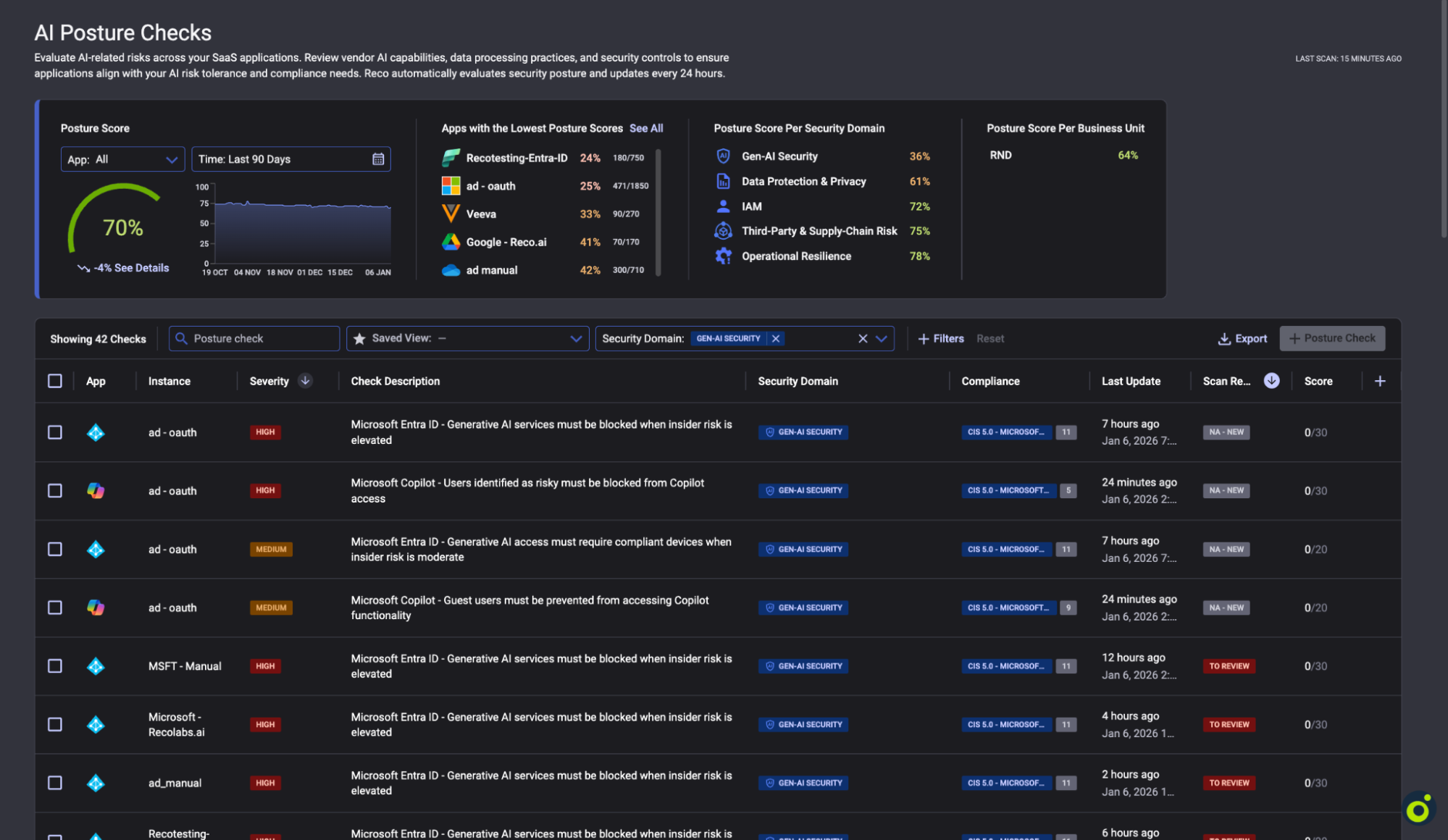
Each posture check includes guided remediation steps that reference Microsoft Entra ID or the relevant Microsoft admin center where the control is enforced. The associated compliance mappings align these controls with the CIS Microsoft 365 Foundations Benchmark v5.0 and ISO 27001:2022 to support audit and governance requirements.
Action: Do not expand Copilot access until all HIGH severity checks pass. MEDIUM severity checks should be addressed before proceeding to broad production rollout.
Not every identity in your tenant should have access to Copilot. Users with elevated risk based on role, behavioral signals, or account status can significantly increase exposure when generative AI is enabled. Identify and restrict these users before Copilot expands the reach of their existing access.
Navigate to Identities → Users
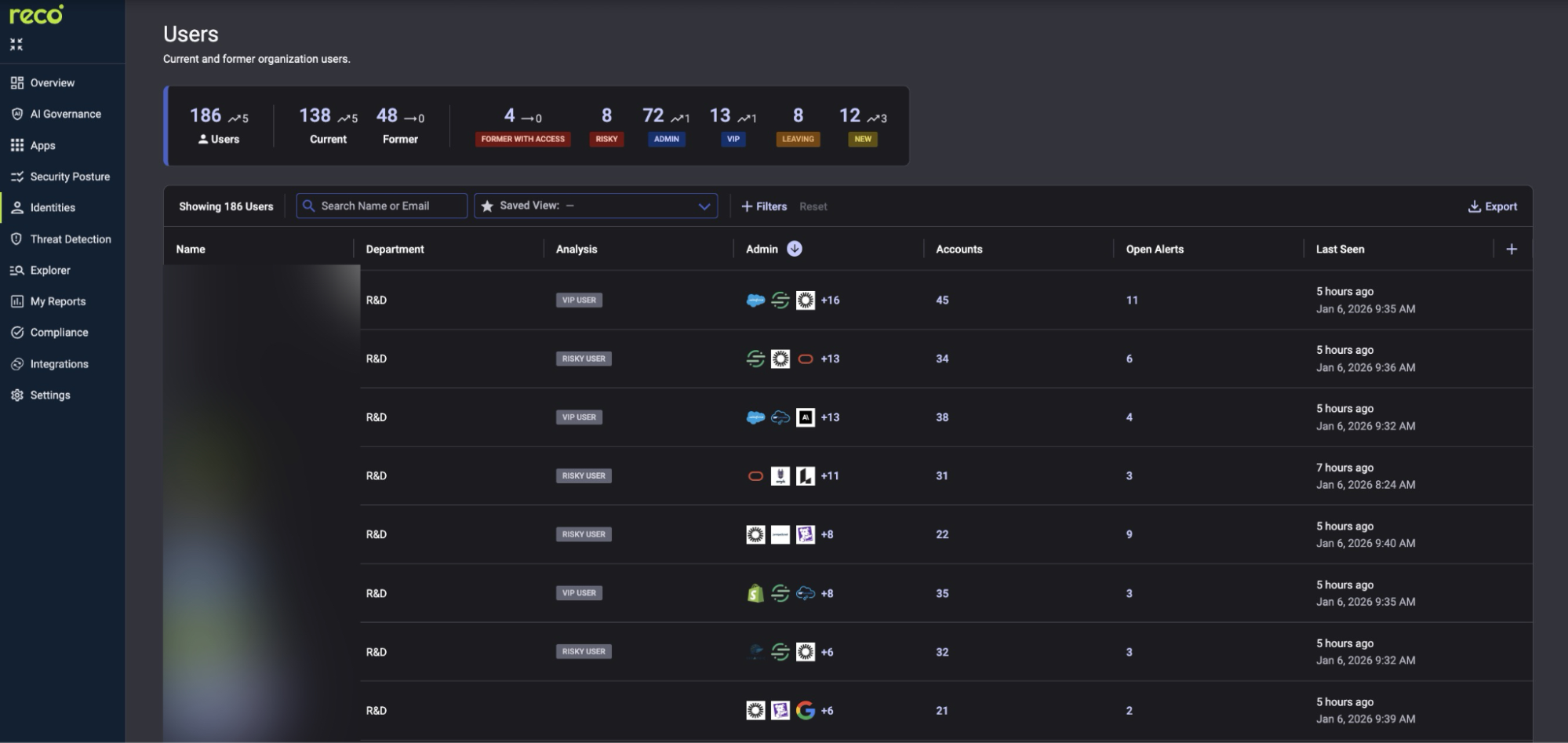
These labels can update based on identity risk signals and, where configured, HR driven lifecycle events. If a user is flagged as elevated risk or in a departure workflow, they should not retain Copilot access by default.
Action: Create a Conditional Access policy in Microsoft Entra ID that blocks Microsoft 365 Copilot for users assessed as high risk. Confirm the control is enforced and that your Copilot posture checks reflect the requirement as passing.
Once Copilot is live, you need continuous visibility into how AI tools are being used across your environment. Indicators such as bulk data access, anomalous usage patterns, or attempts to surface sensitive information should be monitored closely and surfaced through detection policies as quickly as possible.
Navigate to Threat Detection → Policy Center
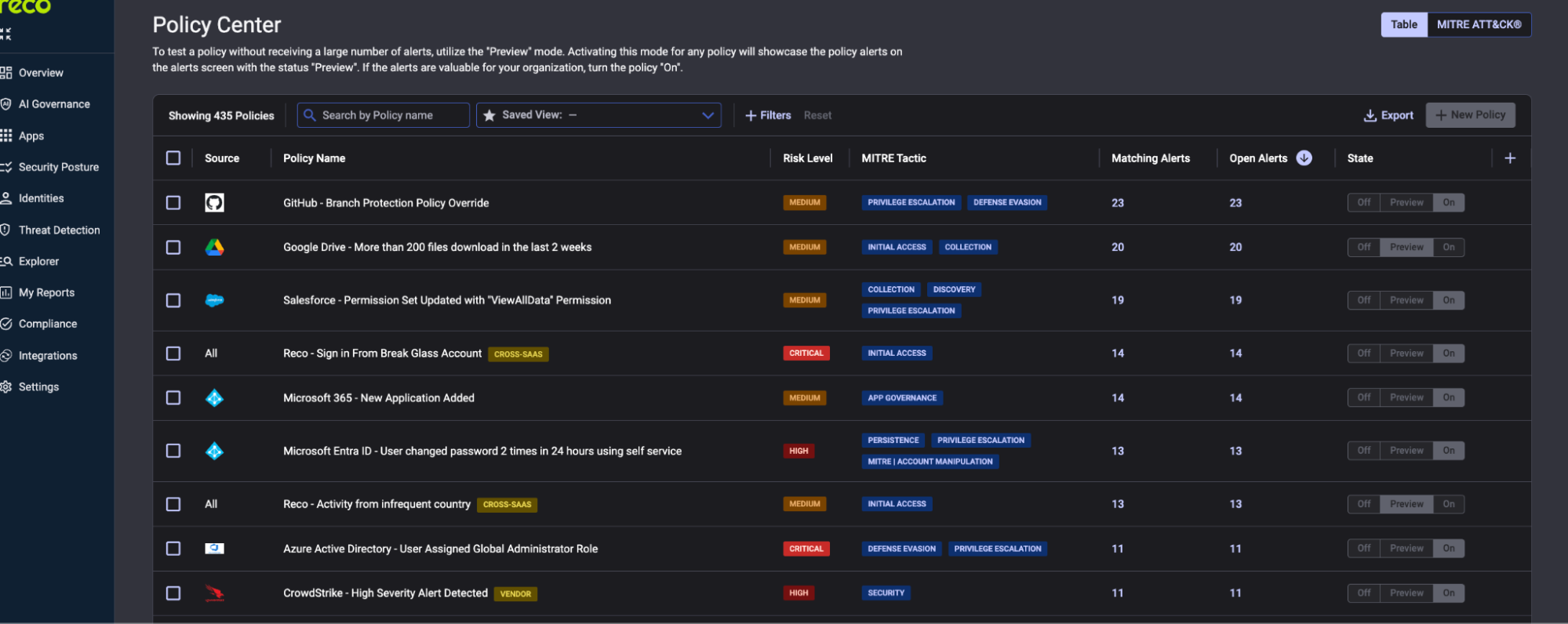
Start with policies in Preview mode during your pilot. This generates alerts for review while keeping production notification routing limited. Once you understand normal patterns, switch to On for production.
Over time, Copilot’s effective access can expand as plugins are connected, integrations evolve, and permission scopes change. What begins as a tightly controlled deployment can drift into broader data access if connected apps and delegated permissions are not reviewed continuously.
Navigate to AI Governance → Connected AI Apps
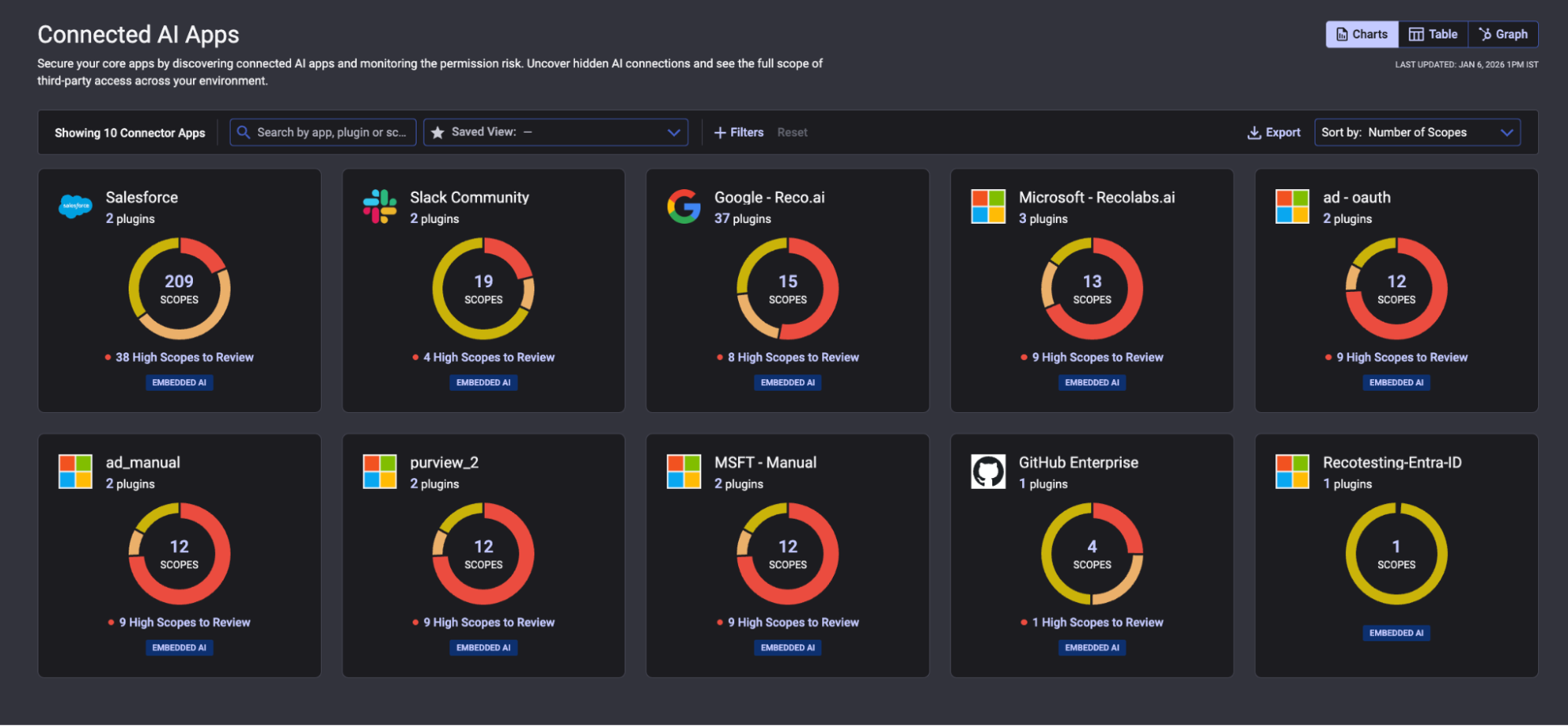
The scope donut chart visualizes permission distribution. Red and orange segments highlight higher risk scopes. The ‘High Scopes to Review’ count shows how many permissions exceed expected boundaries. Click any app to view its individual plugins and revoke excessive scopes.
Microsoft Copilot does not create new permissions, but it changes how existing access is discovered and used. If you enable it before cleaning up permission sprawl and risky identities, Copilot can turn quiet oversharing into fast, searchable exposure.
By validating posture checks, restricting high-risk users, remediating overshared sensitive content, and monitoring AI-driven access patterns after launch, security teams can roll out Copilot with control. With the right guardrails in place, Copilot stays a productivity accelerator instead of amplifying hidden risk.
.svg)


.svg)