Into the Expanse: A Security Leader’s Guide to the Agent Frontier
Read more
“Summarize this document” can mean processing a public press release or exposing an unreleased earnings statement through a personal AI account. The instruction is identical. The user, document, destination, and account determine the risk.
DLP policies for generative AI tools must account for these differences. They must also address data assistants retrieve automatically, requests sent through APIs, and generated content shared afterward.
Use the following workflow to translate acceptable-use rules into enforceable controls, with Reco providing identity and access context alongside runtime protection.
Begin with business workflows, then identify the tools and accounts involved. Reco’s AI Discovery guide explains how to review dedicated AI applications and embedded features.
For each workflow, record the owner, permitted data categories, approved workspace, retention terms, and connected sources. Define a rule that an administrator can implement and a user can understand.
A usable rule might bar customer identifiers from personal AI accounts while permitting them in approved support workflows on authorized corporate accounts with documented data-handling controls.
Reco’s 4 authorization statuses organize approval decisions; each still needs explicit data limits and enforcement actions.
A sanctioned tool is not permission to submit every data type. Block passwords, tokens, and private keys; require explicit approval for regulated records and confidential intellectual property. Inventory status records a decision but does not itself prove enforcement.
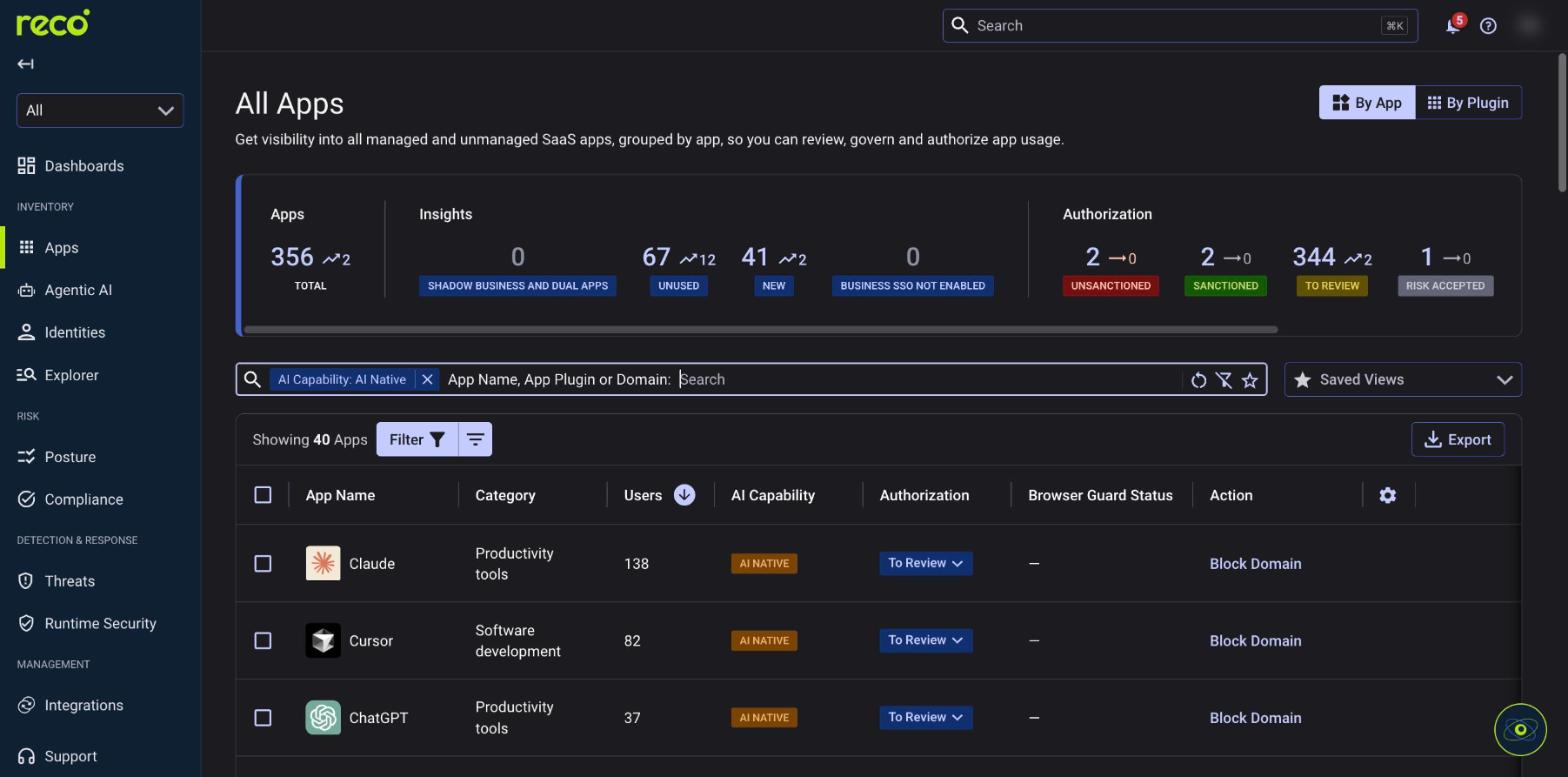
In Reco, Apps → All Apps shows how many apps sit in each status. Filter by AI Capability to review AI tools on their own.
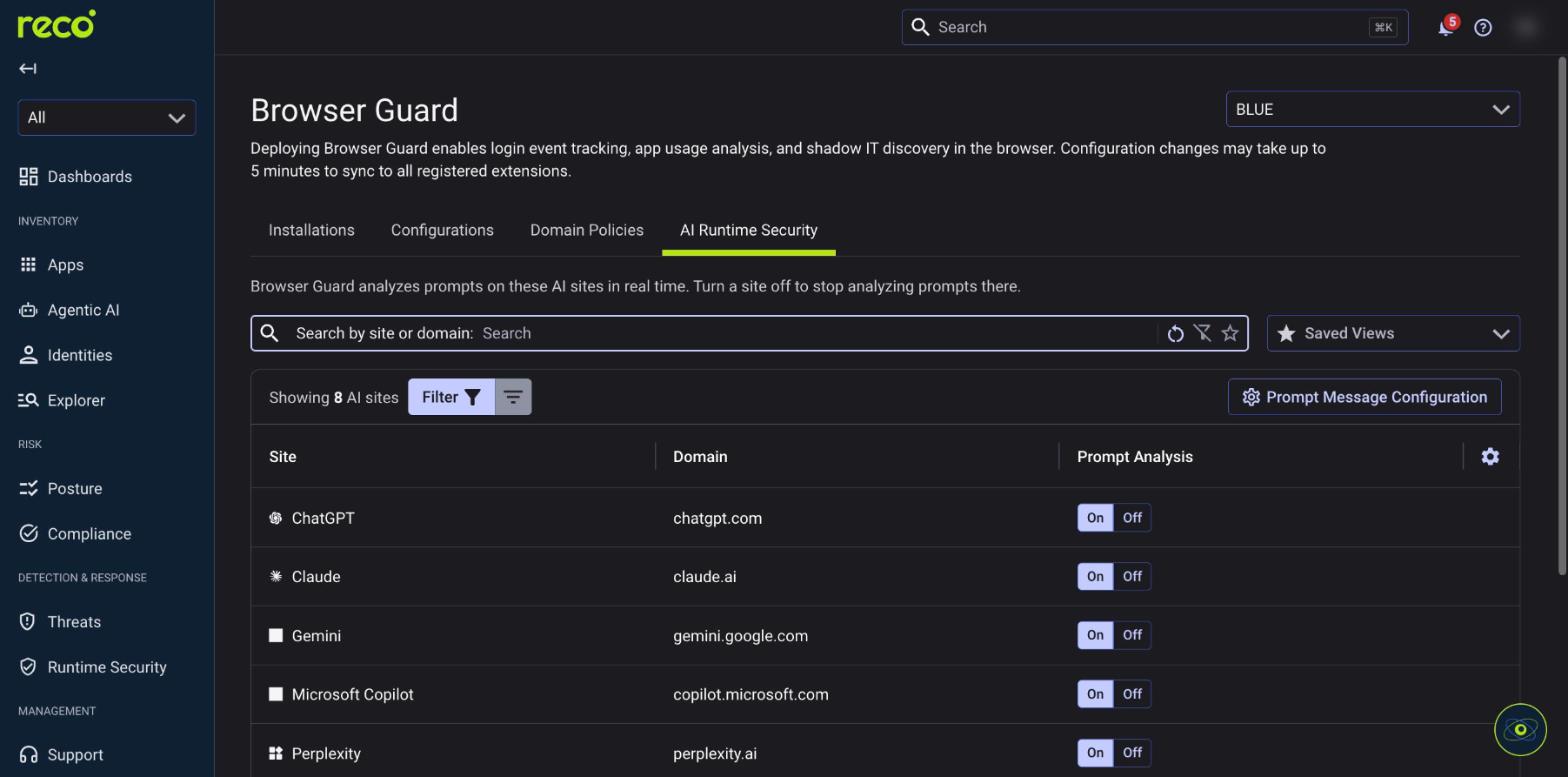
Reco’s Browser Guard is generally available. It inspects browser-based AI prompts and agent activity using the user’s identity, data sensitivity, destination, account type, and business purpose. Teams can detect, guide, block, or stop risky interactions before data exposure or unauthorized actions. Under Browser Guard → AI Runtime Security, prompt analysis can be turned on or off for each AI site.
Use that context to distinguish a permitted corporate workflow from the same content submitted through a personal account. Follow deployment requirements for your supported browsers and applications.
The Reco Graph supplies identity, permission, and connection context for runtime policy decisions. Smart Remediation turns findings into proposed scope changes, permission revocations, or policy updates.
For Claude Enterprise, Reco documents inference-hook enforcement, including blocking sensitive content before governed prompts reach the model. This adds an enforcement point across supported Claude surfaces.
Translate each rule into supported conditions and actions. Review matches before automating restrictions, then verify the action prevents the prohibited interaction.
A copilot can surface confidential information without anyone pasting or uploading it. If a user already has excessive access, an assistant operating within that access can make overshared information easier to find.
Review broad groups, organization-wide links, inherited permissions, abandoned integrations, and connector scopes. Remove access that lacks a business purpose. Prompt filtering cannot correct excessive source permissions on its own.
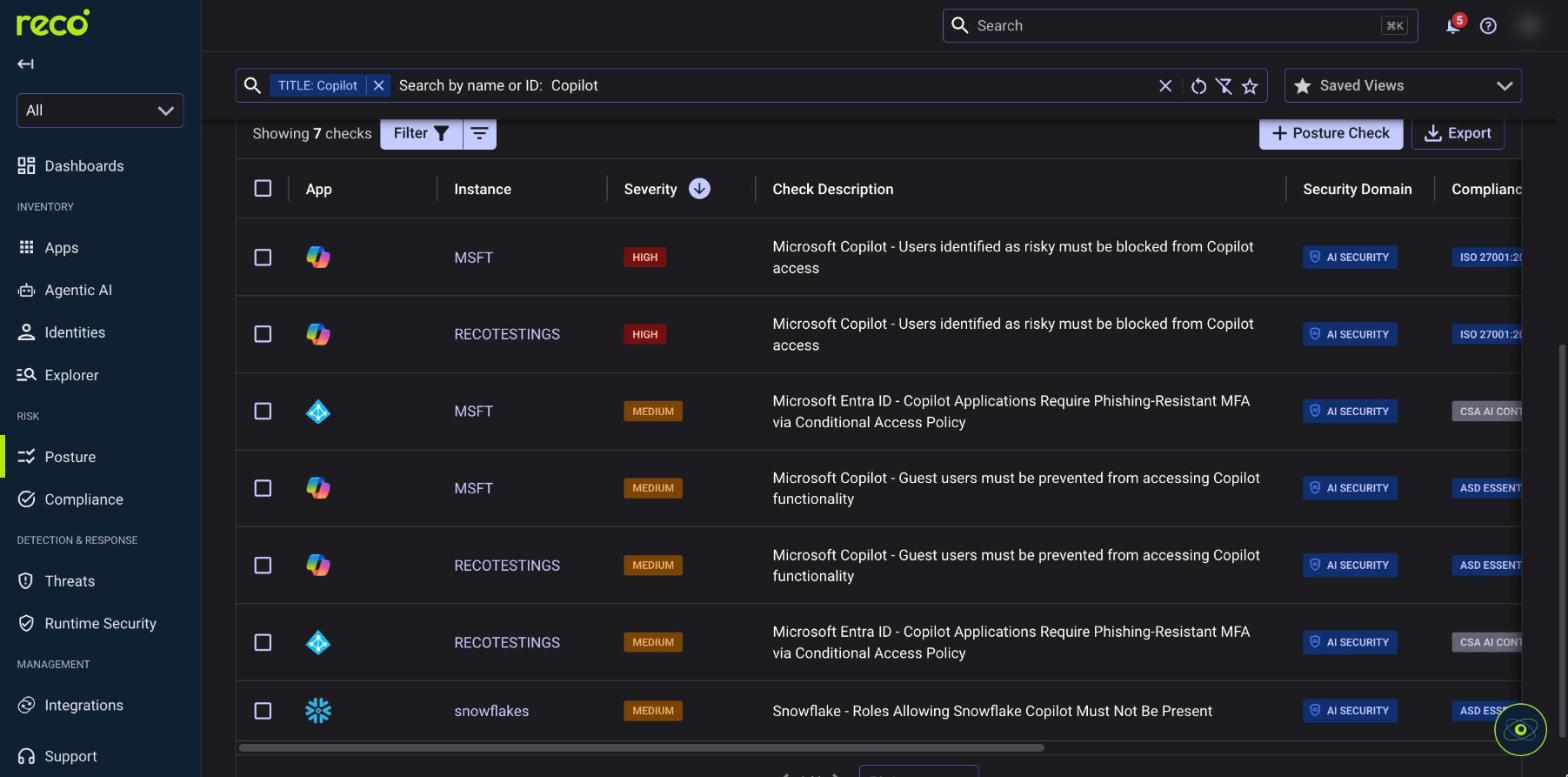
Use AI Governance → AI Posture Checks to assess application misconfigurations, as described in Reco’s acceptable-use policy guide. Pair findings with source-platform remediation and native AI controls. A search for Copilot, for example, returns checks that block risky and guest users from Copilot access.
In Microsoft Purview → Data loss prevention → Policies, create a Custom policy using the Microsoft 365 Copilot and Copilot Chat location. Use sensitivity-label rules to exclude protected files and emails from processing.
Sensitive-information policies can block responses to sensitive prompts or restrict external web search. Blocking web search alone still permits responses grounded in allowed internal Microsoft 365 content.
Microsoft also states that this policy location does not scan the contents of files uploaded directly into prompts. Protect that path separately. See Microsoft’s Copilot DLP documentation.
Google’s dedicated DLP for Gemini rules restrict access to sensitive Drive sources. Define conditions using classification labels or content detectors, then select Block data access to prevent the source from being used, or Audit only to log access.
These rules cover Drive data only and exclude Gemini in Chrome and Gemini Enterprise. For supported editions, existing Workspace DLP separately evaluates generated output inserted into covered services, as described in Google’s Workspace Privacy Hub.
Build a coverage register. Combine Reco runtime protection with native, endpoint, or application controls wherever coverage requires them.
Where endpoint protection is needed, Purview supports browser paste restrictions using Sensitive service domain groups and Paste to supported browsers actions. Configure file uploads separately and verify device and browser prerequisites before deployment.
Use synthetic sensitive data and permitted business examples. Check whether the transfer was prevented and whether an event was recorded.
Tune false positives, and document approved overrides. Enable only the enforcement actions whose coverage and operational impact you have verified.
For a violation, establish whether the transfer was prevented or completed. Record the identity, account, destination, affected data, action, and outcome. If information reached the provider, investigate retention and deletion options. A later block does not erase prior submissions.
Assign an owner to recurring violations and expiring exceptions.
Combine Reco runtime enforcement with source-access restrictions and native DLP controls to protect prompts, retrieval, and downstream sharing. Require evidence of prevention for each data path, and assign a remediation owner to uncovered workflows.
.svg)


.svg)