Into the Expanse: A Security Leader’s Guide to the Agent Frontier
Read more
ChatGPT Enterprise gives administrators strong controls, but those controls need to match how your organization works. A new workspace starts with default settings, employees may already have personal accounts on the corporate domain, and every app connection requires approval.
The starting point is rarely clean. In Reco's 2025 State of Shadow AI Report, OpenAI accounted for 53% of the shadow AI usage observed across 50+ enterprise environments, so many employees reach the sanctioned workspace with habits formed outside it.
This article covers the controls to configure in order, from identity to compliance logging, and shows how Reco keeps them from drifting after launch.
OpenAI's admin quickstart recommends finishing identity setup before adding users at scale. Tenant-wide identity settings live in Admin Console under Global settings, separate from the workspace itself.
Verify every company email domain first. Domain verification confirms ownership and unlocks identity features such as single sign-on (SSO).
Configure SSO with your identity provider and decide whether to require it for all eligible users. Then enable directory sync (SCIM) so accounts are created, updated, and removed as employees join, change teams, or leave.
Syncing a user to the tenant does not grant product access. Assign synchronized groups to the ChatGPT workspace separately, or provisioned users will not see it.
Plan for existing personal accounts registered with company email addresses. OpenAI documents a migration process for them, and until an account moves into the workspace, its conversations sit outside workspace controls.
ChatGPT Enterprise separates the default workspace role, which every member receives on joining, from custom roles assigned through role-based access control (RBAC). Use the default role for the broad member experience and custom roles for specialized access.
A group grants nothing by itself. Permissions come from the roles assigned to it, so map SCIM groups to roles before inviting users broadly.
Keep the Owner group small. When additive RBAC is enabled, a member holding several roles receives the combined permissions, so review effective access rather than each role in isolation.
The first screens employees see shape how they use the workspace. Review the workspace name, identifiers, and public display name so members can tell the approved workspace apart from a personal one.
Use Workspace Policy to present your AI acceptable-use policy before members start working. Add Workspace Instructions for context every conversation should carry, such as approved data categories and where to get help.
On the Models page, set the starting model, reasoning level, speed, and new-chat behavior for Work and Codex. Fast Mode is enabled by default and supports role-specific overrides where available. Starting defaults never grant access to a model a member's role cannot use.
Decide on Work Local and Work Cloud access for the default role and every custom role. Work Local without Work Cloud allows local work in the desktop app but prevents members from starting cloud tasks.
Finally, configure monthly usage controls. Set a workspace default, add group overrides where needed, and configure alerts. Token-based agreements use a monthly budget in USD, and credit-based overage settings do not carry over after a switch.
Apps connect ChatGPT to mail, files, calendars, and business systems, adding data access and external transfer paths. New Enterprise workspaces start with a selected set of apps enabled, and new apps and plugins are generally disabled by default. For each app, review 3 separate controls where the app offers them. Role access decides who can use it, Actions decides what it can do, and Permissions decides when ChatGPT asks before acting.
Disable new actions applies only to actions introduced later and does not switch off actions already enabled. Custom apps are not verified by OpenAI, so treat each one as an unreviewed integration.
Provider consent and ChatGPT action settings are also separate checks. Some actions in the Outlook, Teams, and SharePoint apps require Microsoft Graph permissions that a Microsoft Entra administrator must grant, and that grant does not enable any ChatGPT action on its own. For Google Drive, administrator-managed sync and live actions are configured separately, and restrictions on live actions may not limit content retrieved from a synced index.
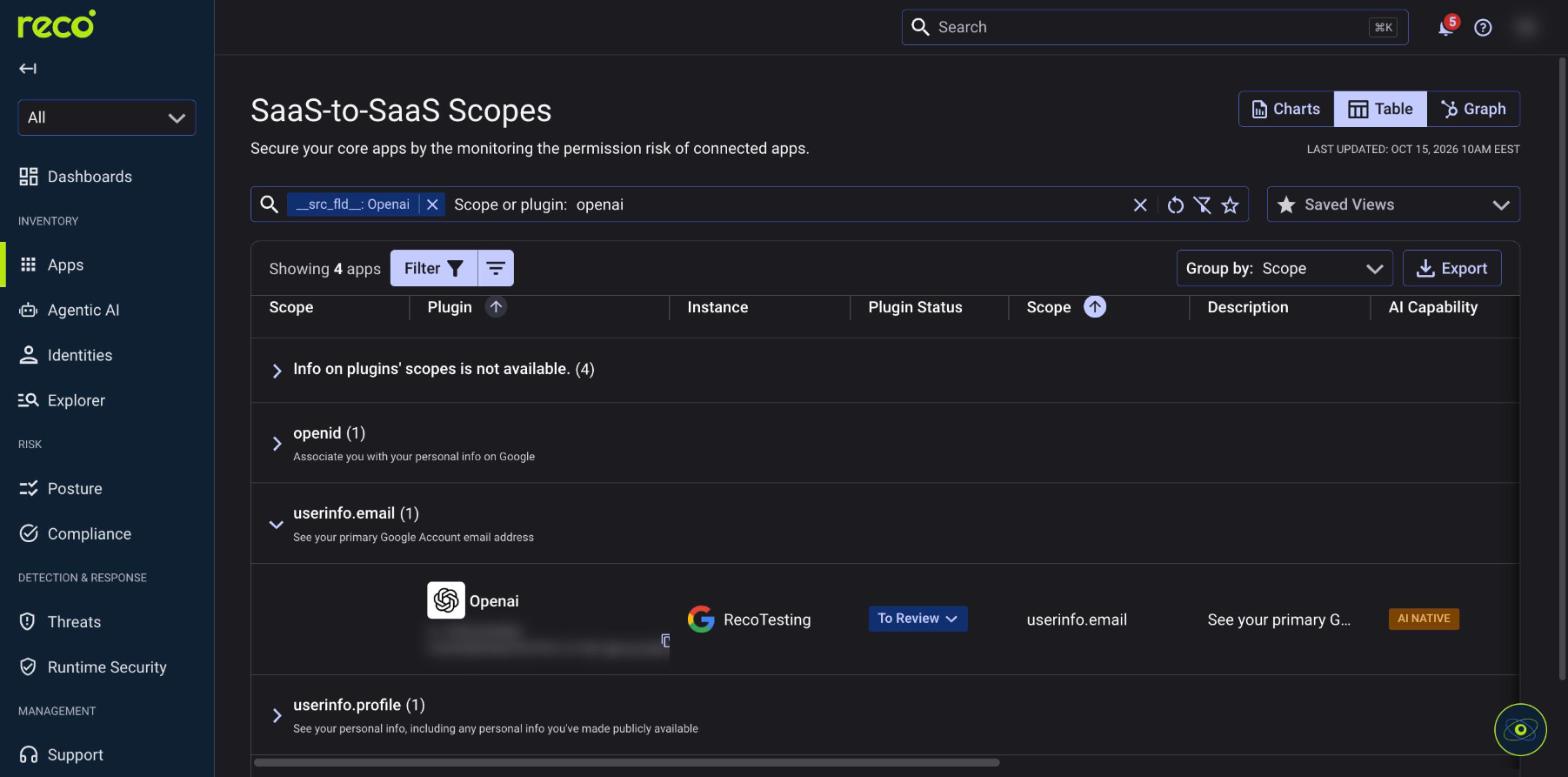
Verify the result from the source side. In Reco, navigate to Apps → SaaS-to-SaaS to see which scopes ChatGPT holds in Google Workspace and Microsoft 365, then compare them with the actions you enabled. Searching for OpenAI lists each of its grants by scope, such as userinfo.email on a Google Workspace instance.
GPTs, Workspace Agents, and Codex extend what members can build and automate, and each follows its own access model.
For GPTs, use groups to control who can access shared GPTs. Review GPT action domains, allowed OAuth domains, and apps used inside GPTs, since a GPT with actions can send data to external endpoints.
Workspace Agents do not follow the workspace app permission setting. Their builders set per-agent controls that determine which app actions are available and when users must approve them, so review agents individually before publishing them broadly.
For Codex, OpenAI suggests one group for Codex users and a smaller group for the administrators who manage its settings, policies, and reporting. Start with a pilot team and expand access as usage patterns become clear.
Configure the controls your risk model requires before members work with sensitive data. Not every workspace needs every control.
OpenAI's Compliance Logs Platform includes Admin Audit, User Authentication, and Codex Usage logs, and the stateful API complements it for current-state queries. Logs are retained for 30 days, so organizations that need longer retention must export them continuously. App log coverage also varies by app, so confirm export coverage before relying on it for audit evidence.
Neither residency option confines everything to the region. Data residency covers in-scope customer content at rest, and inference residency covers GPU execution on that content. Authentication, routing, and other CPU-based processing may still occur elsewhere, and connected apps and web search follow their own providers' terms.
OpenAI adds features regularly, and some arrive with new data access or write capabilities that need an admin decision. A workspace configured correctly at launch can drift within a quarter.
Reco integrates with ChatGPT alongside the rest of the application estate, so the workspace can be governed with the same identity and access context as every other app. Reco's guide to ChatGPT risk in the enterprise covers exposure paths, incident response, and deployment practices in more depth.
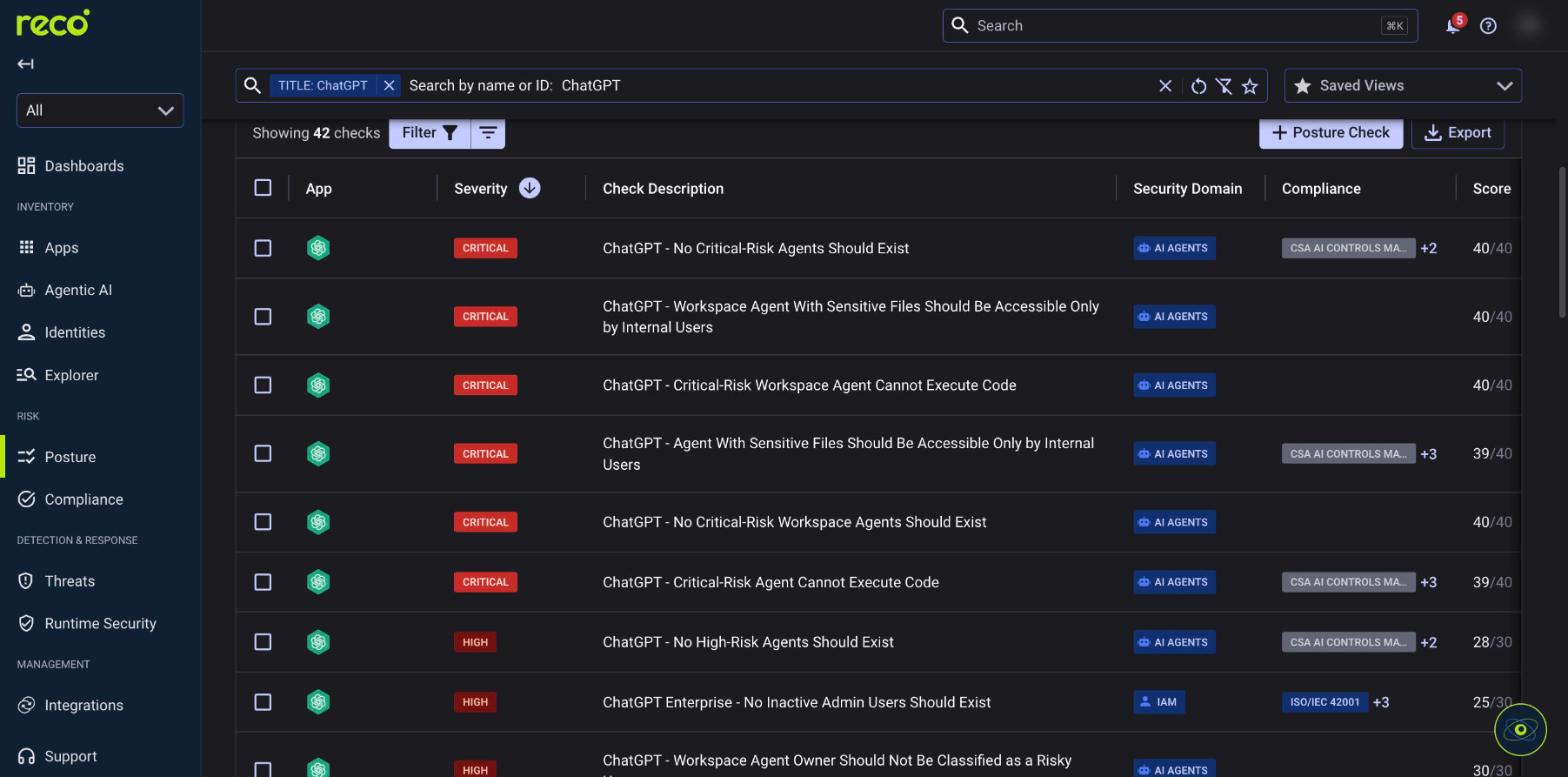
Searching AI Posture Checks for ChatGPT, for example, returns workspace checks such as keeping agents with sensitive files internal-only.
Review role assignments, SCIM group mappings, enabled write actions, and GPT action domains each quarter, and after every major OpenAI feature release. Reco findings show where to look first.
Securing ChatGPT Enterprise requires a phased, multi-layered strategy starting with domain verification, SSO, and SCIM provisioning. Administrators must then establish role-based access controls, enforce secure workspace defaults, and restrict permissions across third-party apps, custom GPTs, Workspace Agents, and Codex to reduce sensitive data exposure.
However, initial configuration alone cannot prevent configuration drift as AI capabilities evolve. Continuous monitoring via platforms like Reco helps security teams uncover shadow AI, identify misconfigurations, and audit excessive OAuth scopes. Pairing robust initial setup with ongoing visibility ensures AI adoption remains secure at scale.
.svg)


.svg)